Getting Started
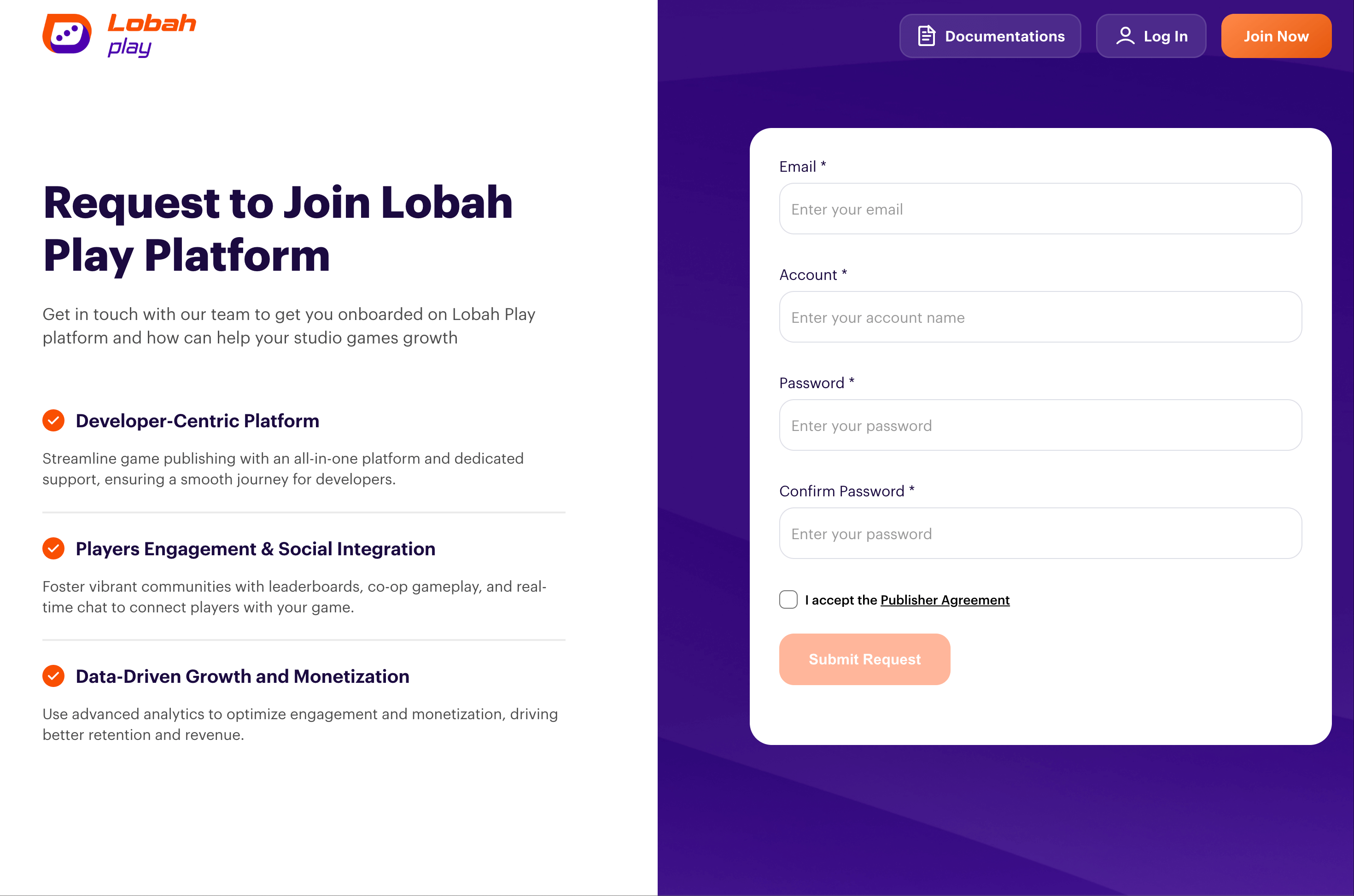
Register a developer account
go to Lobah developer>>Join Now,and the submit。
Preparation
Before you start publishing your game, please prepare the following game-related materials:
Game Image Assets
Developers need to prepare four images with the specifications and purposes as follows:
| Image Name | Size | Purpose |
|---|---|---|
| Introduction Image | 796 × 448 | Used for the game introduction display page |
| ICON Image | 500 × 500 | Displayed in game lists, search results, etc. |
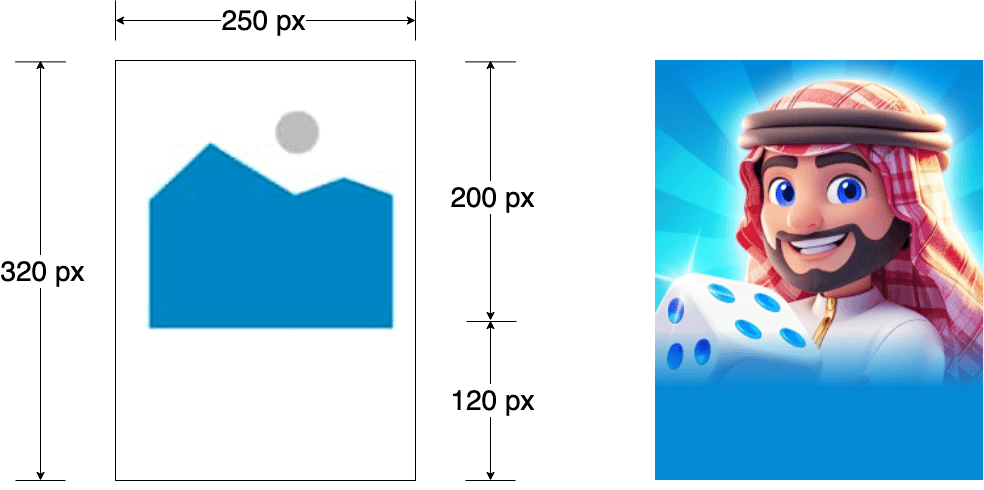
| Promotion Image | 250 × 320 | Used when the game is displayed in the promotion position on the app home page |
| Loading Image | 750 × 1626 | Used during the game loading process |
Note, the promotion image needs to concentrate the main content of the picture within the upper 200 pixels of the image, leaving about 120 pixels at the bottom. Below is a schematic diagram:
English name of the game, Arabic name of the game (if not available, use the English name), company name, and game description.
The text length requirements for the above contents are as follows:
- English name: 30 characters or less
- Arabic name: 30 characters or less
- Company name: 50 characters or less
- Game description: 90 characters or less
Create New Game
After obtaining an account on the Lobah Developer Center, log into My Games page and click Create Your Game to start creating a game.
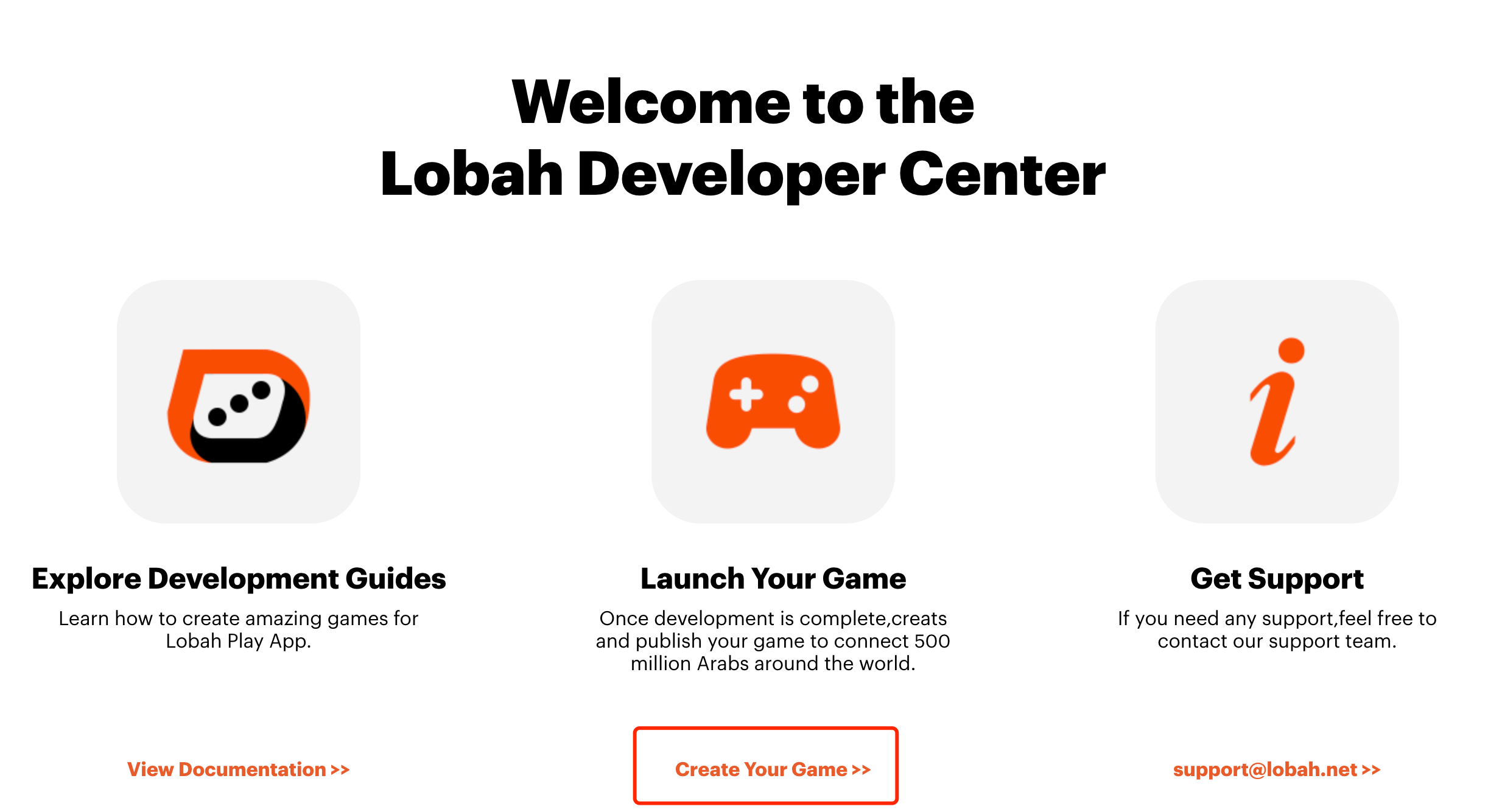
In the pop-up dialog box, you need to fill in the following information:
- English name of the game
- Arabic name of the game
- Company name
- Game description
- Game introduction image (796 × 448)
- Official website address of the game. If there is no website address temporarily, check
I don't have any official website.
After filling in the above information, click the Confirm button to complete the game creation.
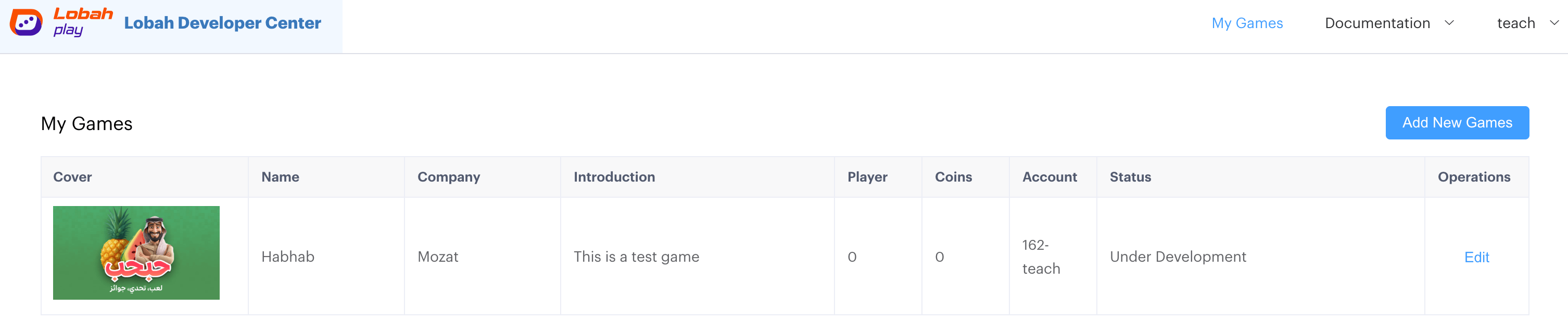
Supplement Game Information
Click on the game name to enter the game Deployment -> Configuration page and supplement the game information.
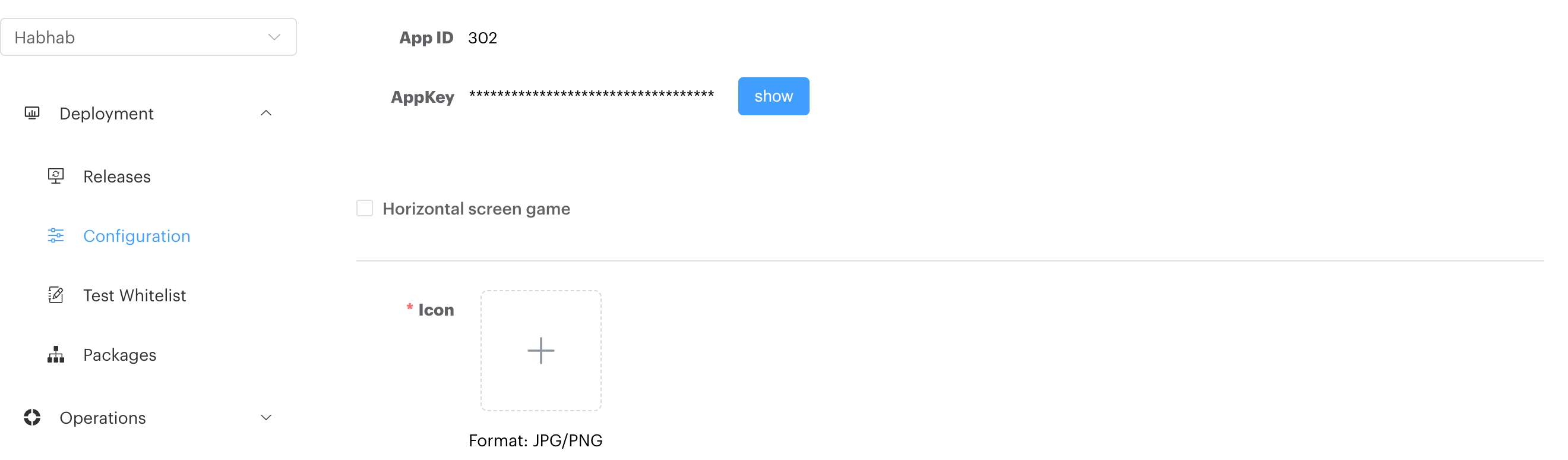
- If the game is a horizontal screen game, check
Horizontal screen game. - Supplement ICON image (500×500), promotion image (250×320), and loading image (750×1626).
Game Testing
After creating the game, you need to set up a test account for testing.
Setting Up Test Account
- Please obtain the application from the app store:
- Apple Store: https://apps.apple.com/us/app/lobah-play-لعبة/id6740733521
- Google Play: https://play.google.com/store/apps/details?id=com.rings.lobahplay
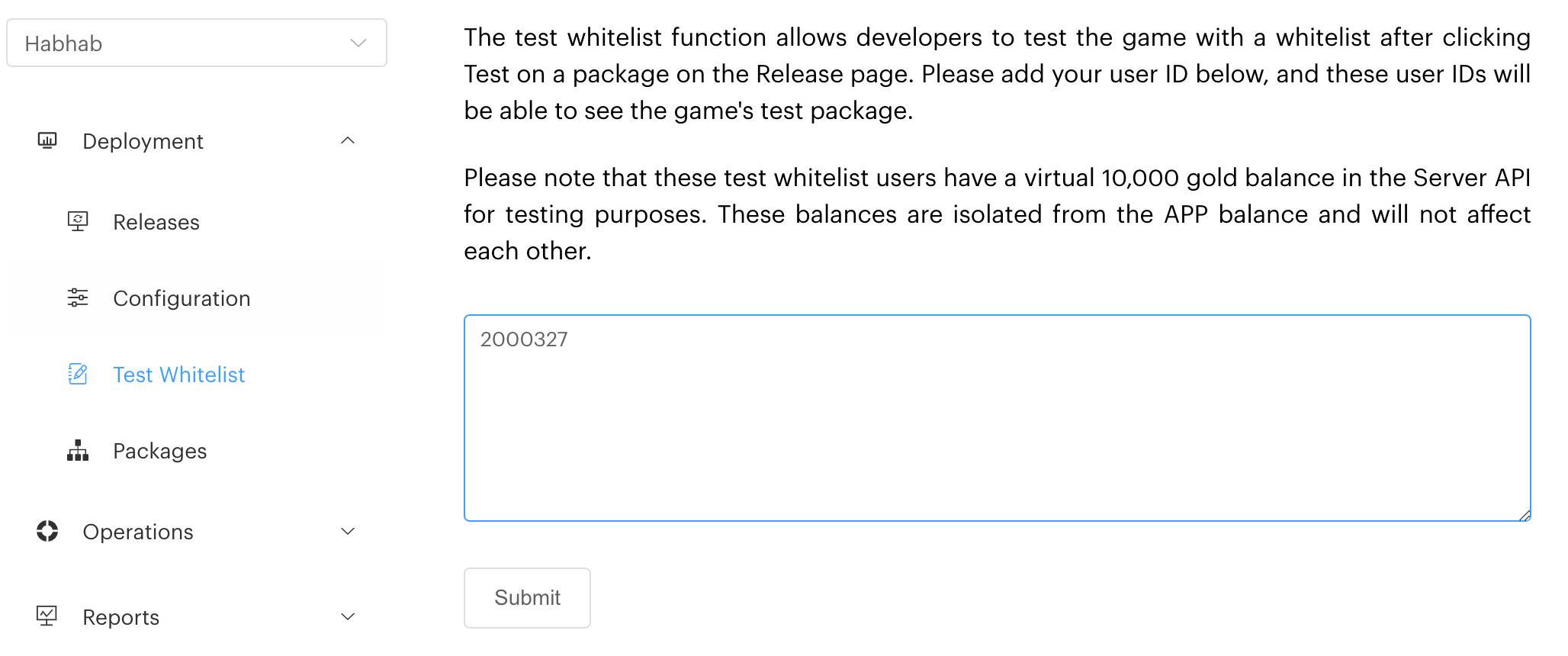
Register and log in to the APP, and get your user ID on the Account page.
Enter the Lobah Developer Center
Deployment -> Test Whitelistpage, fill in the user ID, and click the "Submit" button.
Test Package
After setting up the test account, you can upload the game package for testing.
- Enter the Lobah Developer Center
Deployment -> Packagespage, clickAdd New Package, select the zip package of the game, and clickSubmitto upload.
Note that the entry file index.html of the game must be placed in the root directory of the zip package to pass the upload inspection.
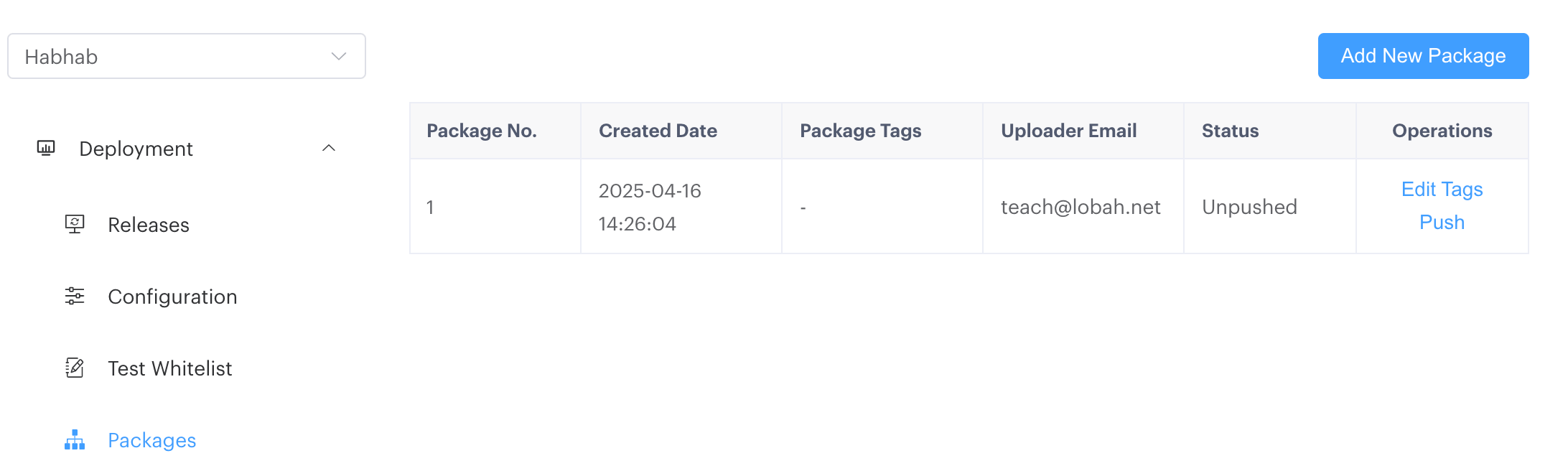
(Optional step) Click the
Edit Tagsbutton of the package to tag the package, which is convenient for subsequent use.Click the
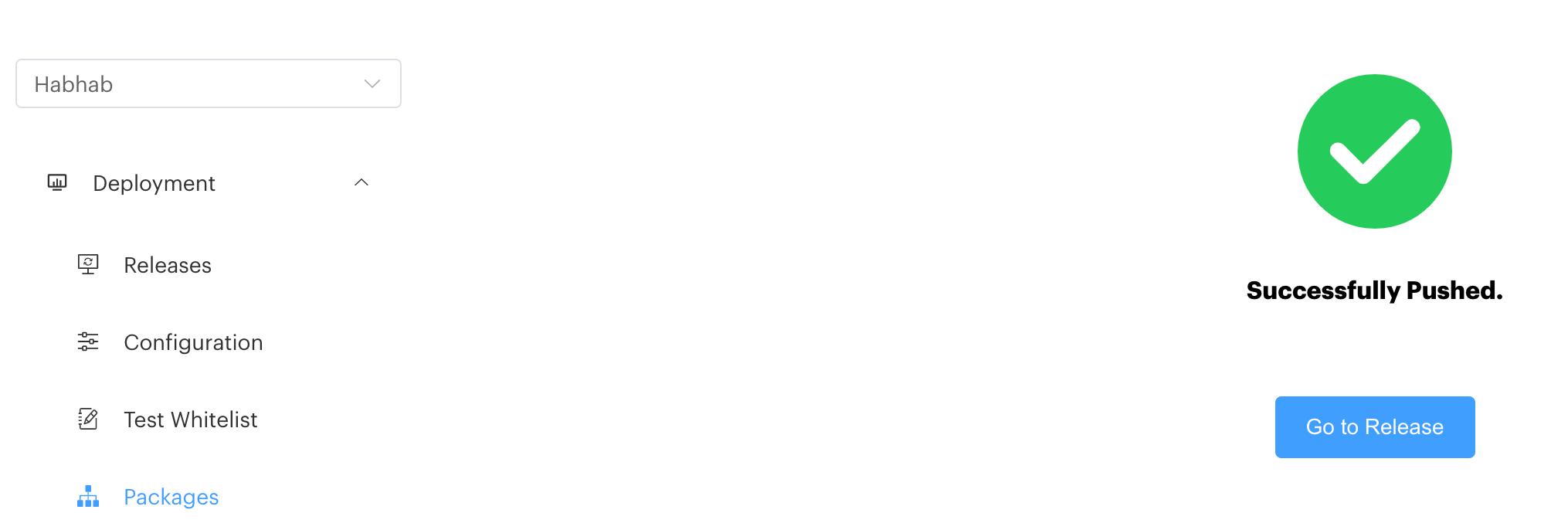
Pushbutton of the package to push it to theDeployment -> Releasepage.
- Enter the Lobah Developer Center
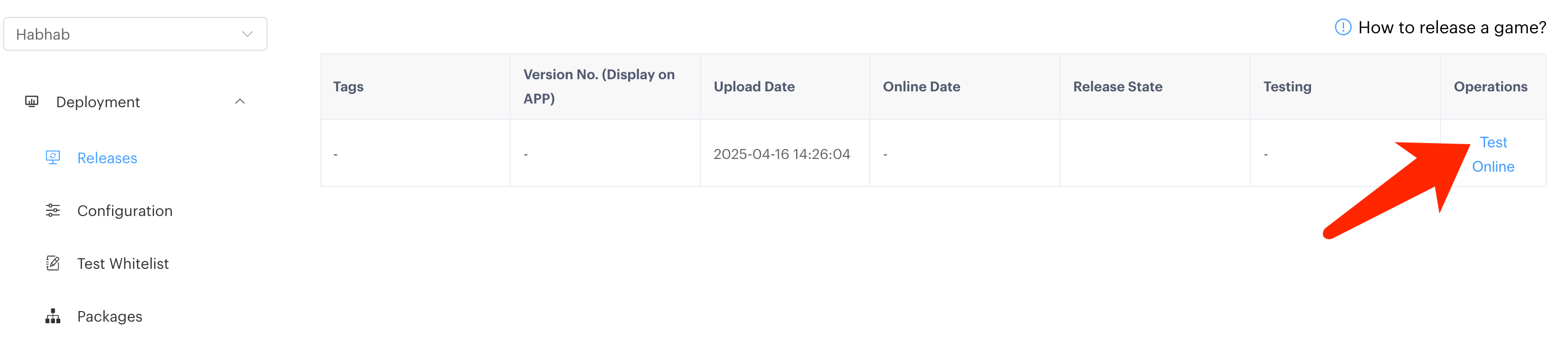
Deployment -> Releasepage, select the pushed package, and click theTestbutton to perform the test.
- At this time, enter the APP, click the orange button in the middle at the bottom to open the game list. Search for the game name to click and enter the game.
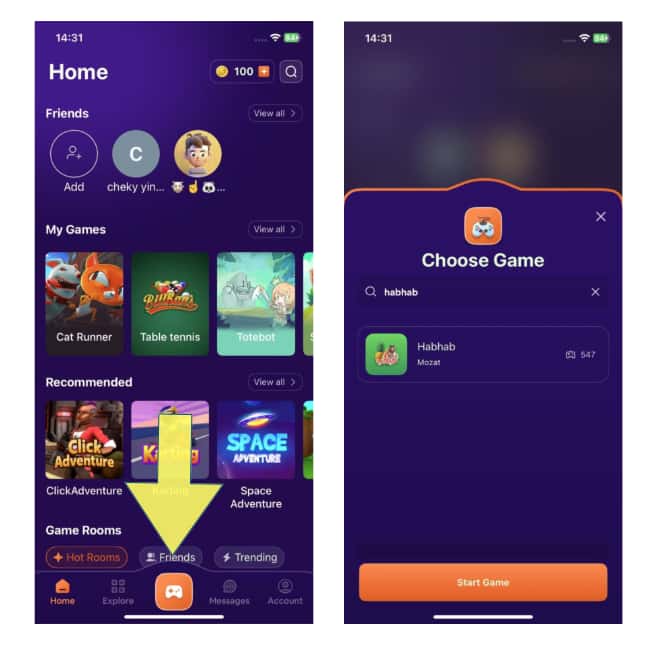
Note that if the game cannot be seen in the game list, please confirm whether the login account is already on the whitelist and whether the game list has been reopened.
Game Publishment
After the game testing is complete, you need to submit it for review. The game can only go live after the review is approved.
Submitting for Review
On the Lobah Developer Center Deployment -> Release page, click the Online button next to the tested package to submit it for review.
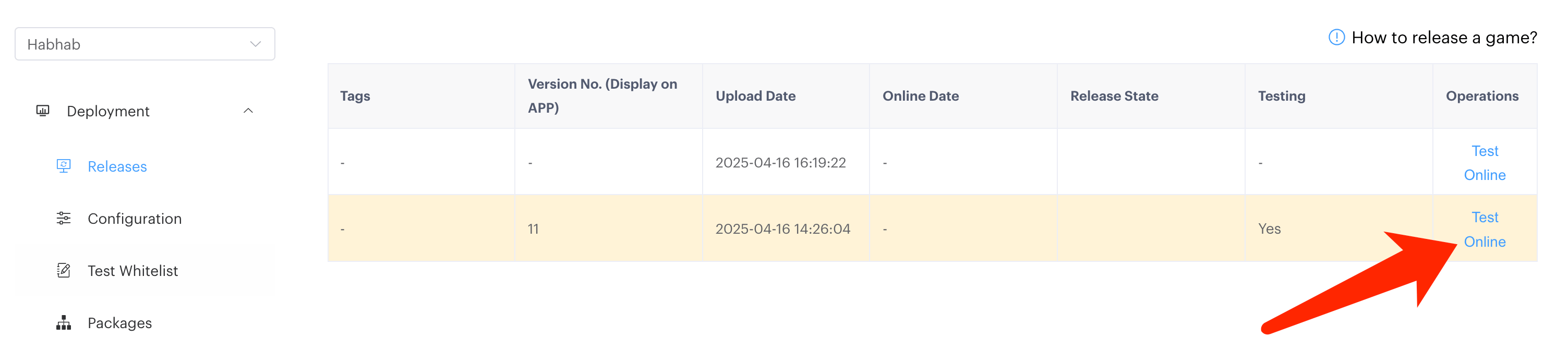
Before submitting for review, please ensure that all game information is filled out correctly and that the game is complete.
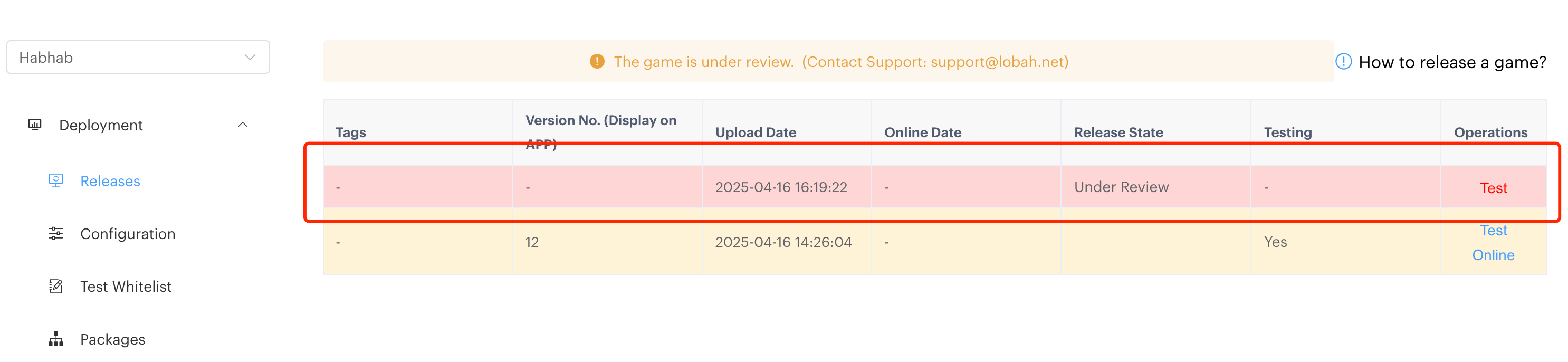
Packages under review will be displayed with a red background:
Checking Review Results
The review results will be displayed on the Deployment -> Release page once the review is completed.
If the review is approved, the notification will be displayed with a green background:

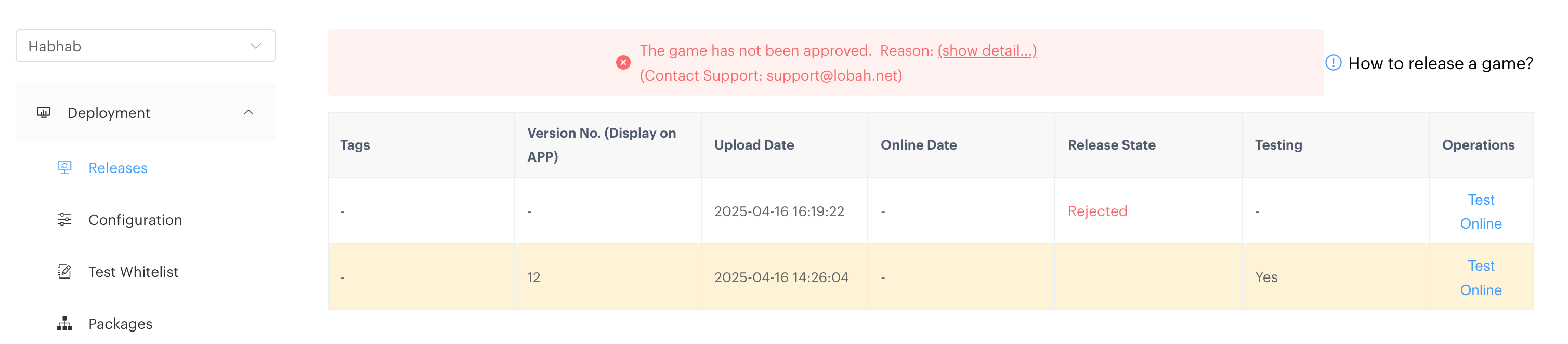
If the review is rejected, the notification will be displayed with a red background. Click show detail to view the reasons for the rejection review.